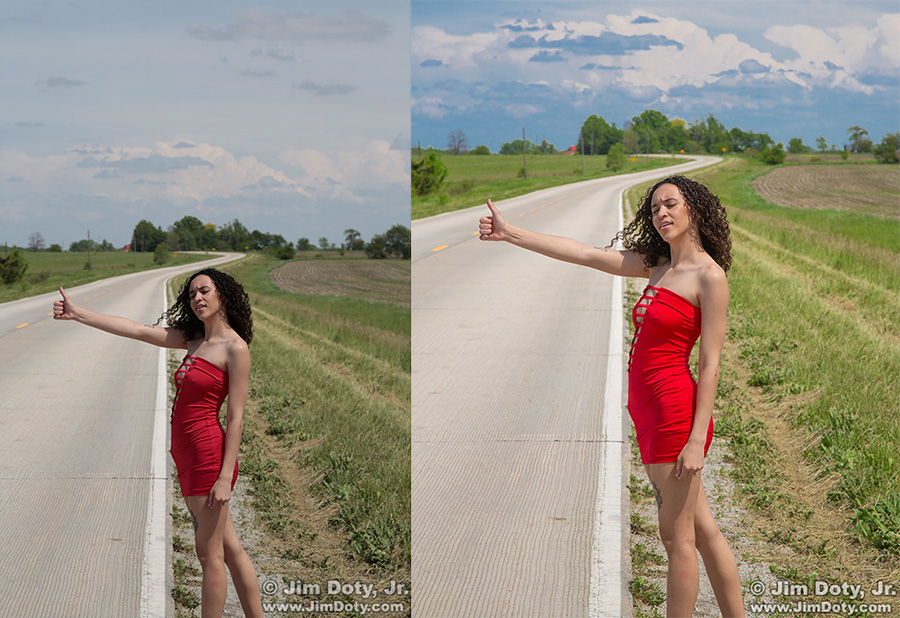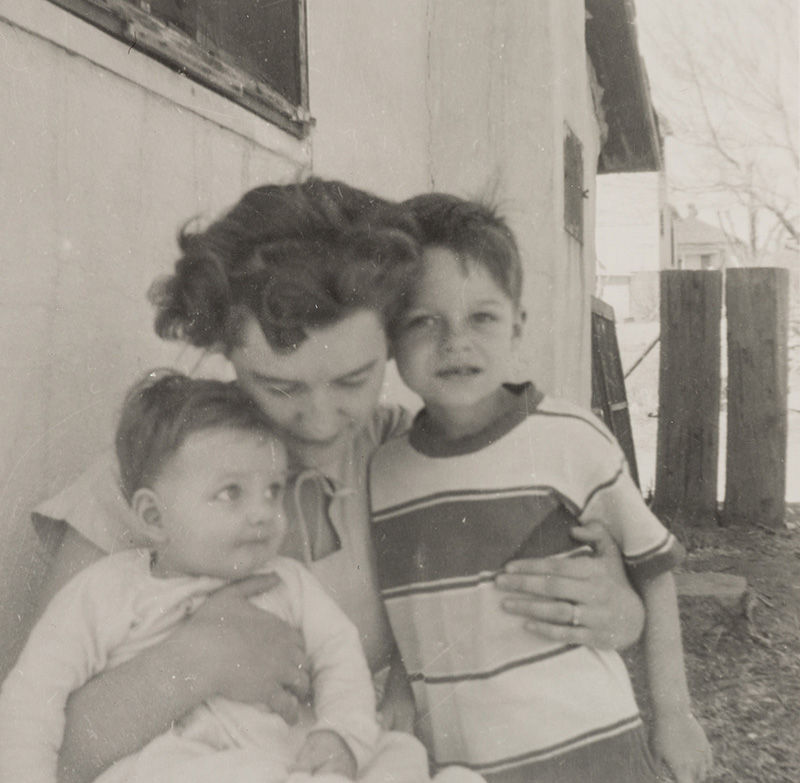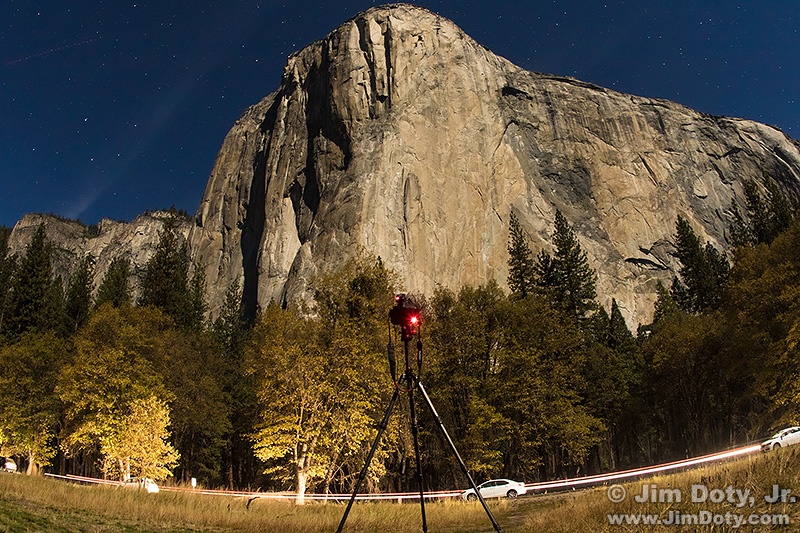
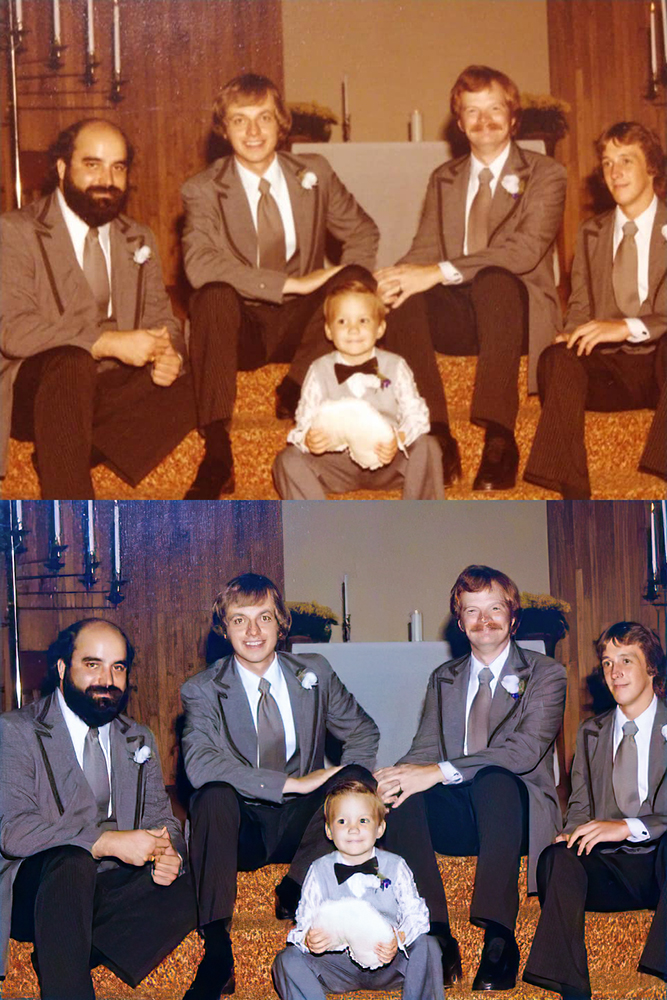
I went looking for a photo of my friend Jack from several years ago and the one I found needed some basic work. I will take you through my process of optimizing this photo.
Category Archives: Computing and Software
Where was this Photo taken? How to Use an EXIF Viewer to Find the Location of an Online Photo.
Most smart phones and some digital cameras record the GPS coordinates of a photo every time the shutter button is pressed, provided you have that feature turned on. If you find a photo on the internet, you can use an EXIF Viewer to see if the GPS coordinates are embedded in the online photo. Not all cameras have this capability, and some photographers strip that information out of their photos before they post them online. I really appreciate landscape photographers that leave the GPS data in their online photos.
The Best Online Backup For Your Photos and Other Important Files
39% of Americans never backup their data. That’s not good. Another 19% do this only once per year. No wonder so many people lose important files and photos if they have a hard drive crash.
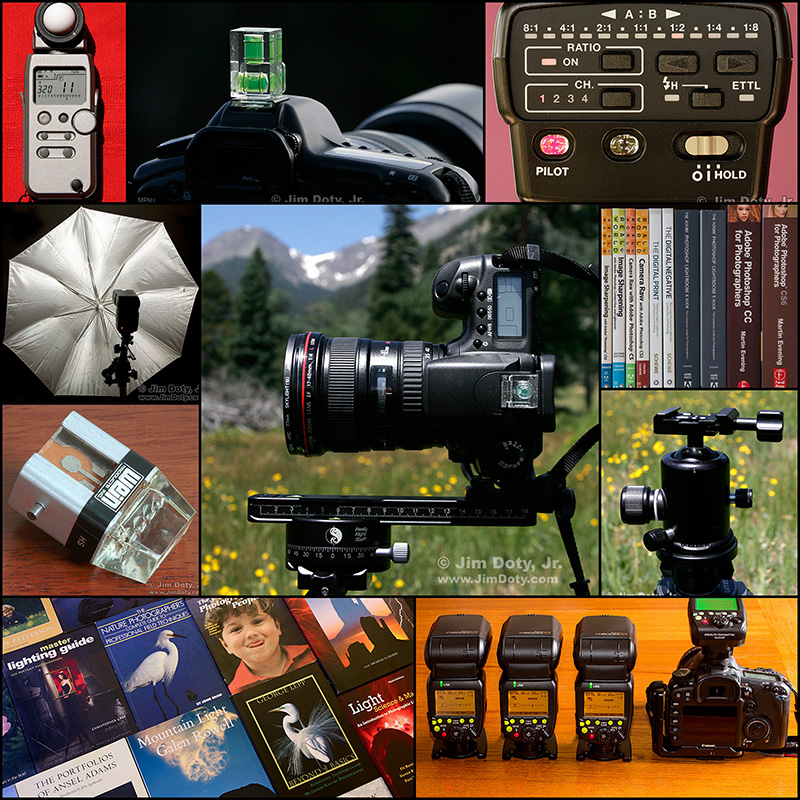
Buyer’s Guide: Recommendations For The Best Photography Equipment, Software, Books, Magazines, DVDs, Online Photo Labs, and More
Welcome to my online buying guide for photographers. With over 75 articles it is one of the most comprehensive photography buyer’s guides on the web.
I get lots of photo questions, especially at this time of year, and many of them begin with “What is the best . . . .” They usually come from photographers or someone who is shopping for a photographer. If you are shopping for yourself, or for a photographer in your life, this series is for you.
My “best of the best” series recommends the best photo gear, accessories, software, books, DVDs, online photo labs, and a whole lot more. Thanks to the information in these articles I get emails from photographers thanking me for saving them time, frustration, and a lot of money.
This article is updated annually. Most recent update: June 19, 2025.
Adobe Bridge: Finding an Original Photo
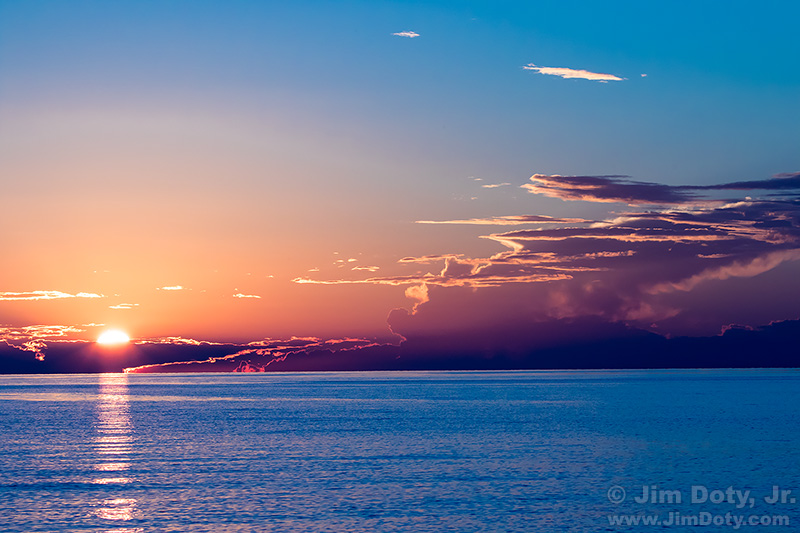
It started with a text message from my brother John that included this sunset photo. He found it somewhere on one of my websites. He was asking technical questions about the original photo that I could not answer without finding the original photo and checking the size in MB and dimensions in pixels. I knew at first glance that this is a sunset photo of Lake Michigan that was taken at Thorne Swift Nature Preserve which is not far from Harbor Springs Michigan. I was leading a photo workshop field trip when I created this image. It was taken several years ago but I had no idea what year or the specific date. But that was simple to figure out. Using Adobe Bridge it would take only a few seconds.
Adobe Bridge Basics: How to Do a Keyword Search

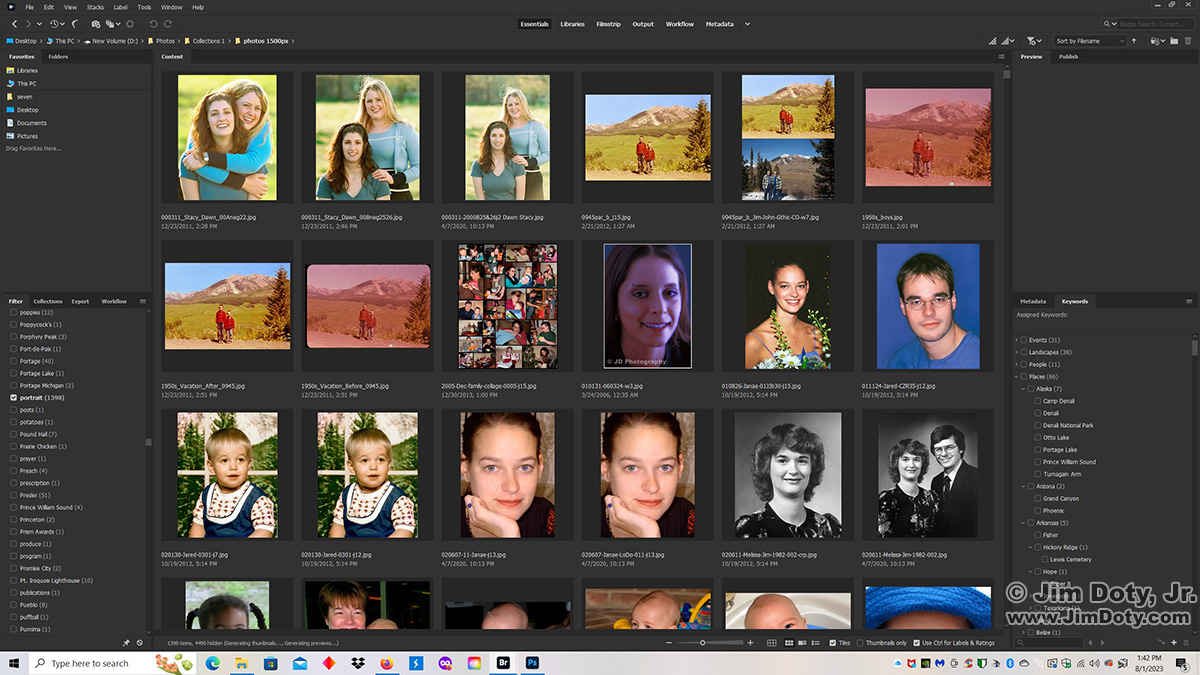
Single Keyword searches with Adobe Bridge are fast and simple. Open your master folder of photos (see Adventures with Adobe Bridge for suggestions on how to create this folder). All of the keywords for all of the photos in your folder will show up on a list at the left. Scroll down the list until you come to the keyword you want to use in your search. For this example I chose the keyword “portrait”. Click the box in front of the word portrait and in less than a second all of your portraits will show up. You can see some of them in the above screen capture. The process is the same for any other keyword you want to look for, be it elk, moose, sunsets, or Elvis sightings.
Adobe Bridge Basics: How to Batch Keyword Photos

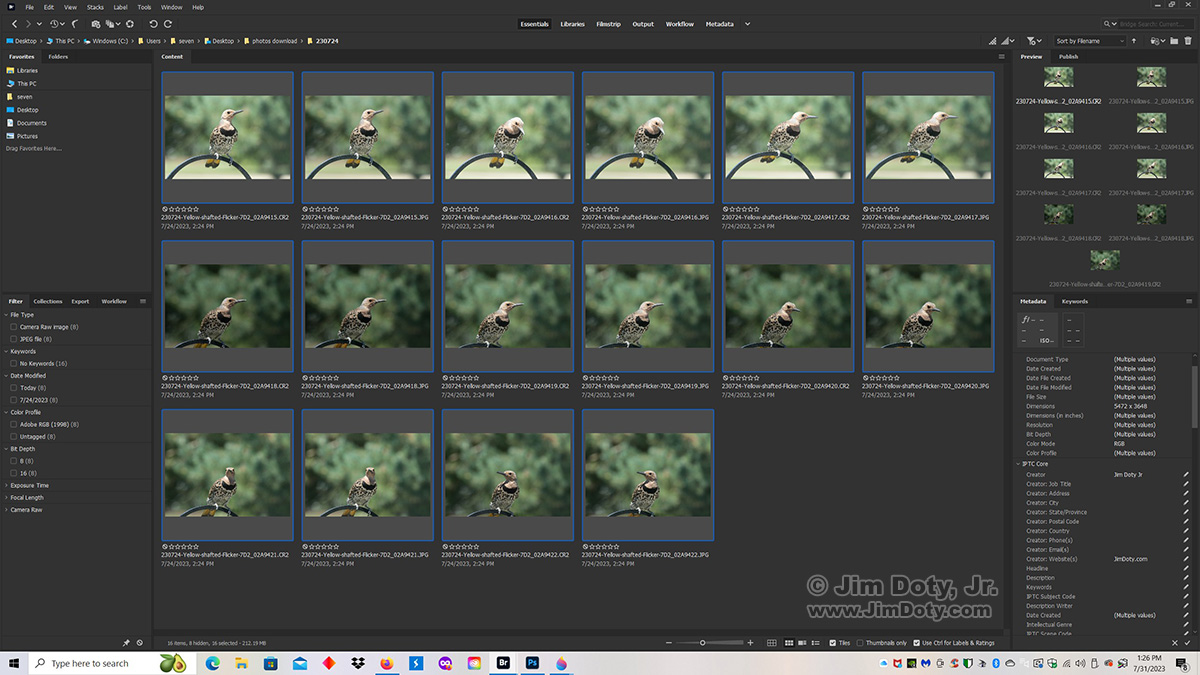
This is the third article in a “how to” series. In the prior article in this series we ended up with a folder of renamed photos that need to be keyworded. They are still all selected as you can see by the blue borders. This article will show you how to batch keyword these photos.
Adobe Bridge Basics: How to Batch Rename Photos
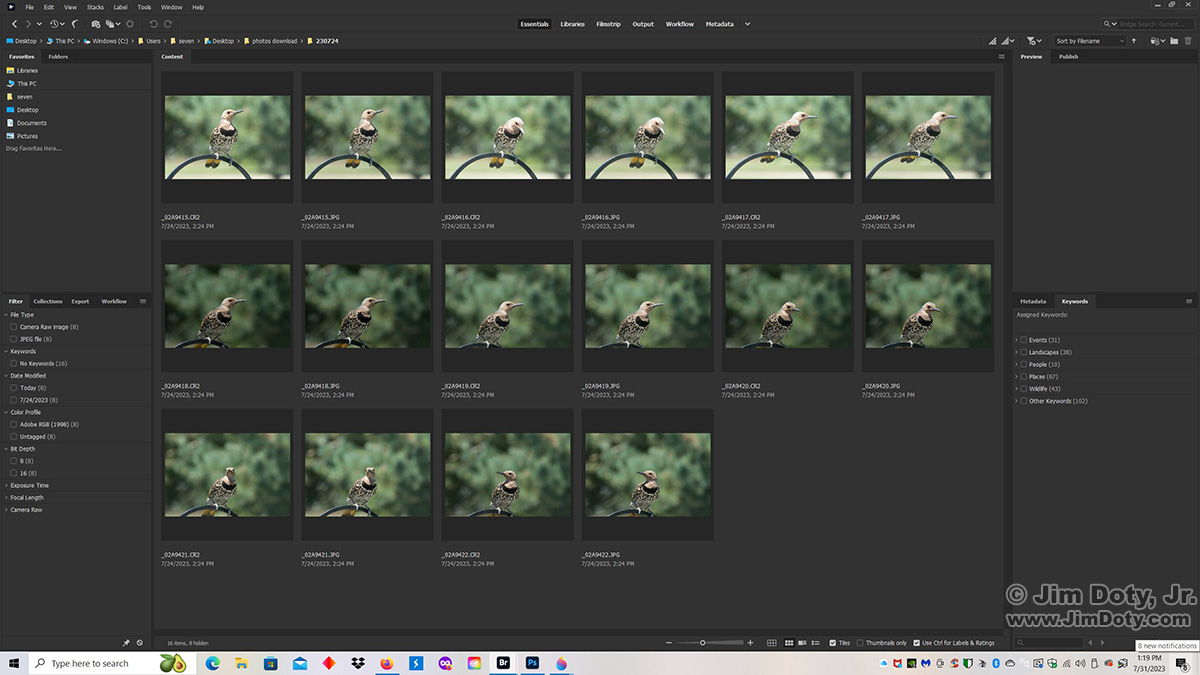
In the last article we ended up with several folders with photos that need to be renamed. This is the folder for July 24, 2023. I will take you through the simple steps to batch rename these photos.
Adobe Bridge Basics: How To Download Photos into Folders By Date
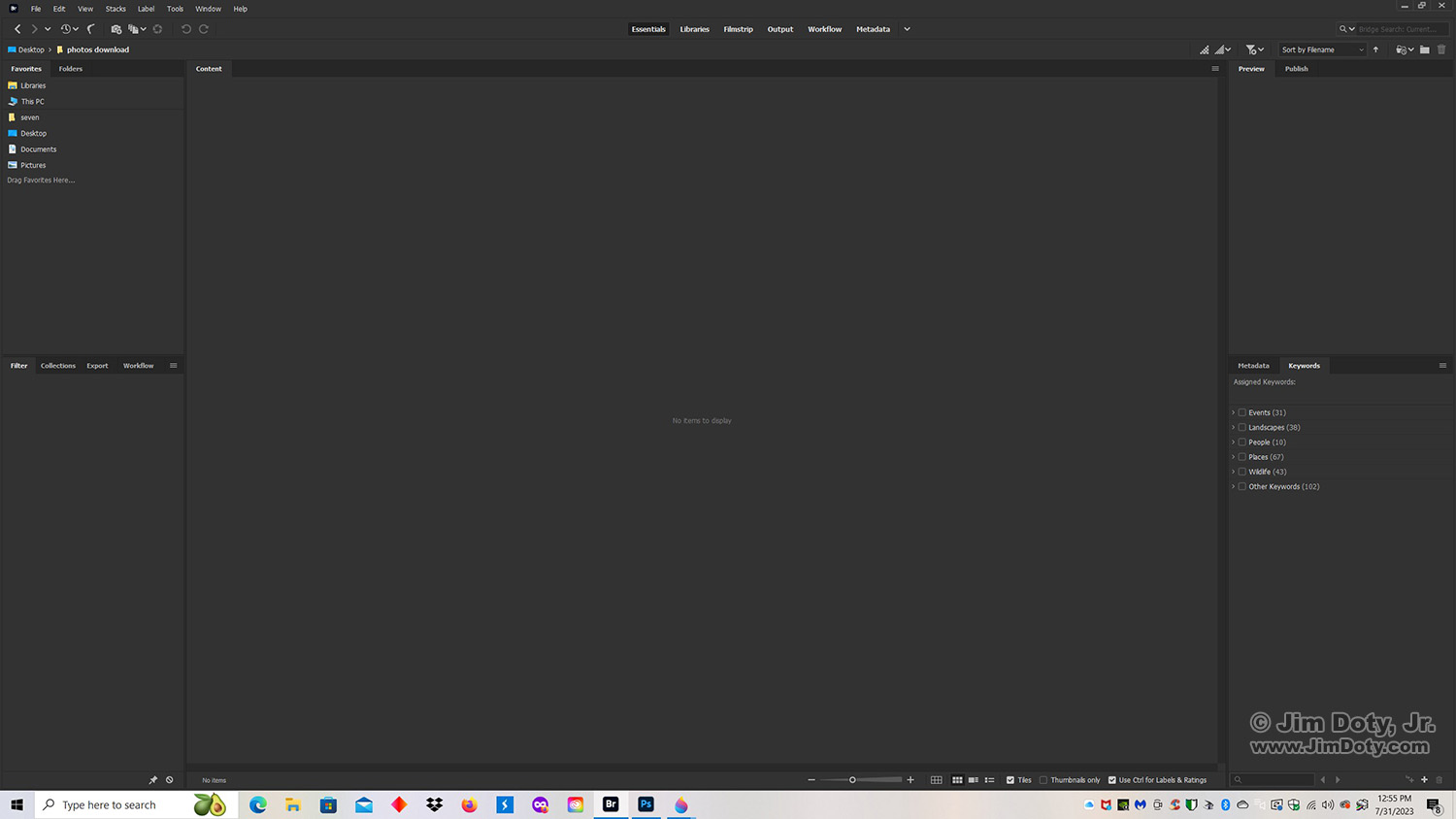
I was downloading, renaming, and keywording photos today so I did some screen captures to create this series of three tutorials on how to use Adobe Bridge. If you find Bridge intimidating, this series is for you. When you click on Bridge to open it, this is what the workspace looks like. There is more about why you should use Adobe Bridge in Adventures with Adobe Bridge. FYI, Adobe Bridge is a free download.
“How To” Series: Adventures with Adobe Bridge
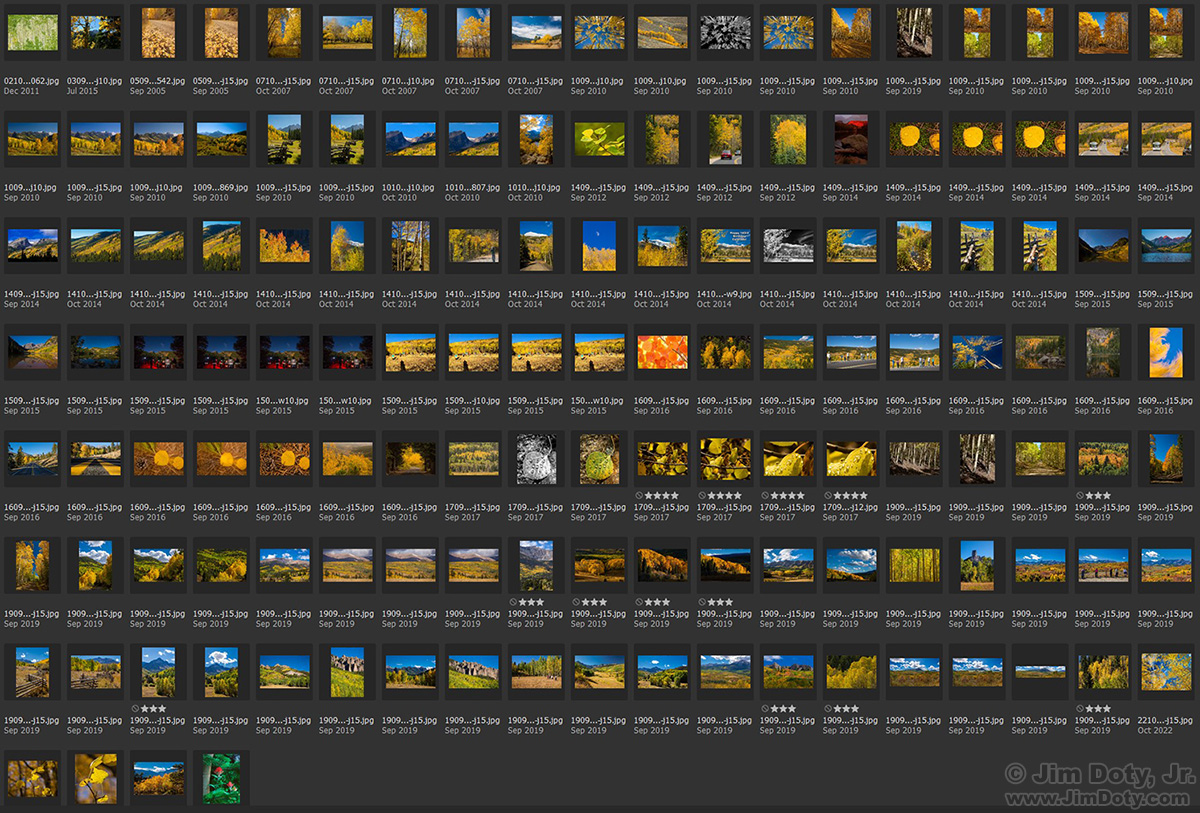
Why use Adobe Bridge? To quickly find a photo or photos. And it is free. If you have a hard time finding photos you want, Adobe Bridge can make that process so much faster and simpler.
Where did you take that photo?
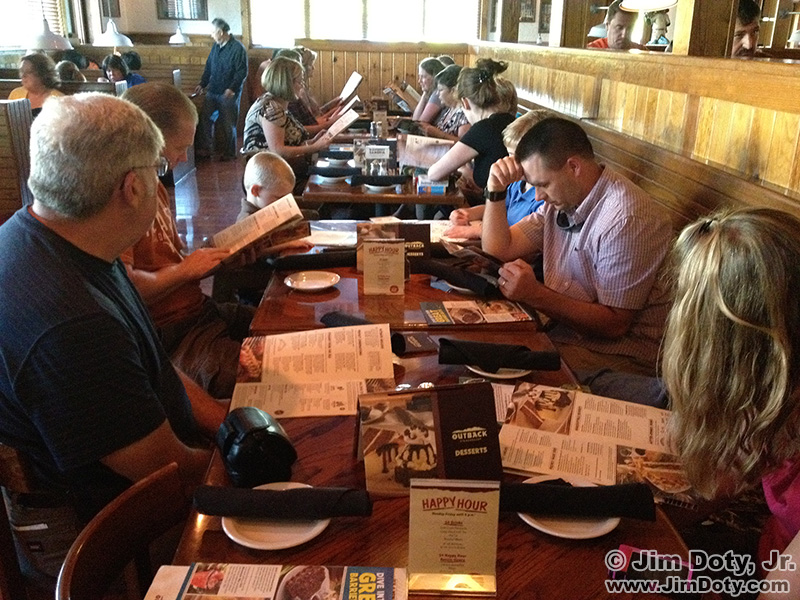
I get asked that question on a regular basis. This time it was a photo I posted on Facebook of our extended family (20 of us) at a restaurant when we were all together in the Bay Area in California.
Fixing a Photo for Publication with Topaz Sharpen AI
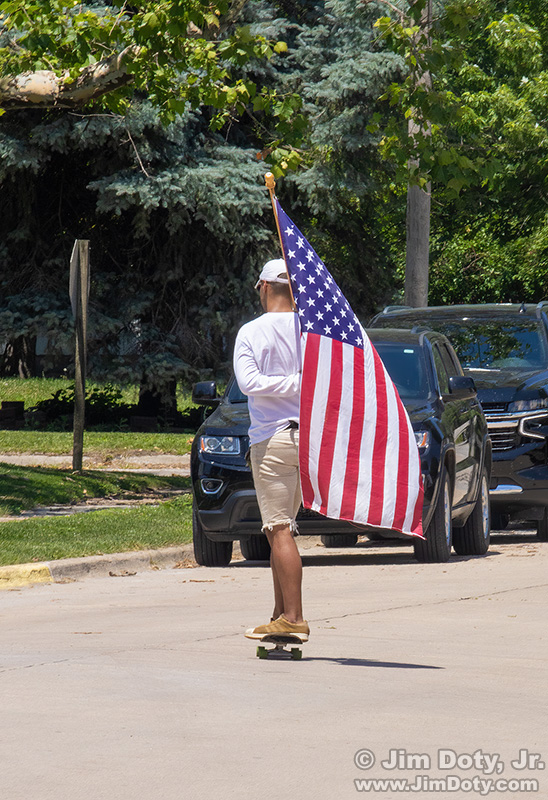
I was going through parade images yesterday to send to the local newspaper. The parade was over when I spotted this person on a skateboard with an American flag. I took 8 images of him with varying backgrounds, him with different body postures, and the flag at different angles. My least favorite had his head looking straight down as he checked his phone. This is my most favorite. I processed this image with Adobe Camera Raw and Topaz software before sending it off to the newspaper.
Testing Topaz Gigapixel AI on a 1960s Family Photo
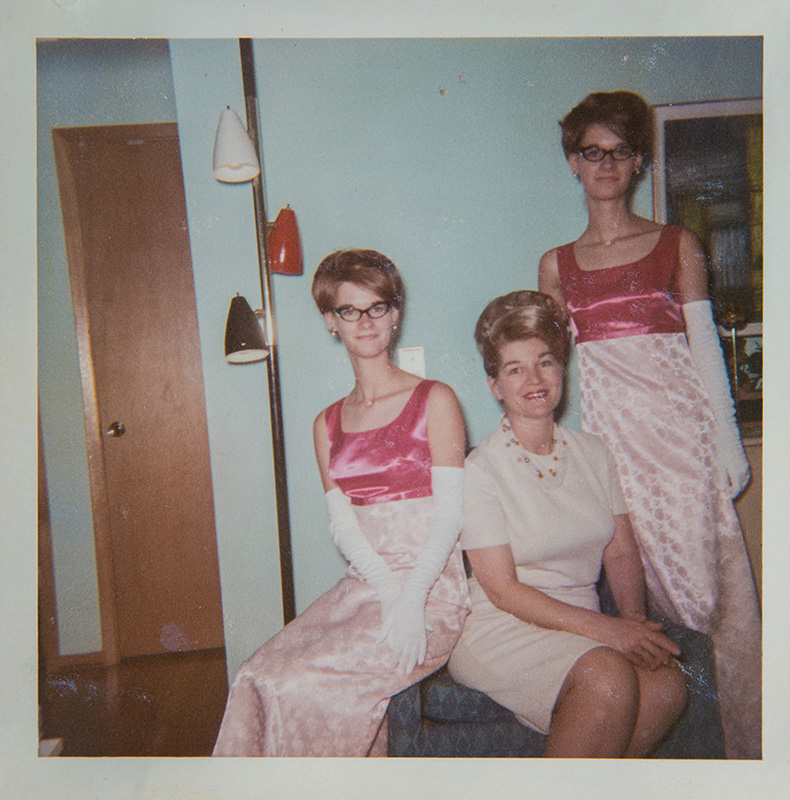
At a family reunion several years ago I decided to make digital copies of some old family photo albums. I did one digital picture of each page (there were several photos on each page). When I got back home I digitally separated the individual photos that were on each page. This particular image is a family favorite. I decided this image would be a good test of Topaz Gigapixel AI which enlarges, and hopefully improves small photos. The original photographic print also has a lot of damage which created some additional problems.
Sharpening an Asian Festival Image: Photoshop vs Topaz

I have been using Topaz Sharpen AI and I am impressed. It has rescued some old photos that were previously unusable. This photo is an example. I tried Photoshop but I could not successfully fix this photo. I have other photos of this dancer that are sharp, but I like this particular moment in the dance.
Testing Topaz Gigapixel AI
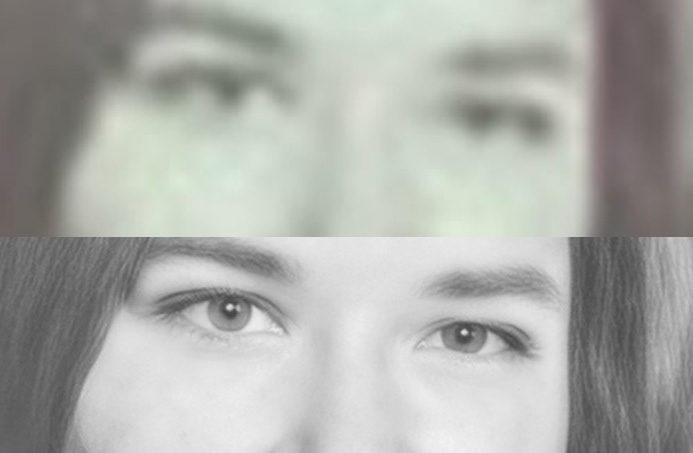
My friend Paula lost all of her high school photos in a fire. Last week a friend posted a high school photo of her on her Facebook page. It is a very blurry photo that appears to have been copied from a high school yearbook.
Continue readingRate and Name Your Digital Photos!
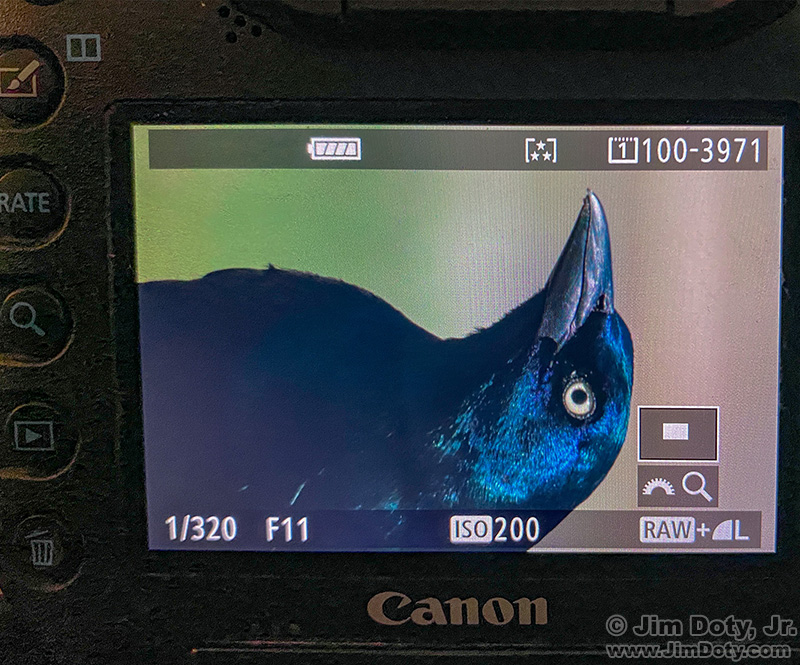
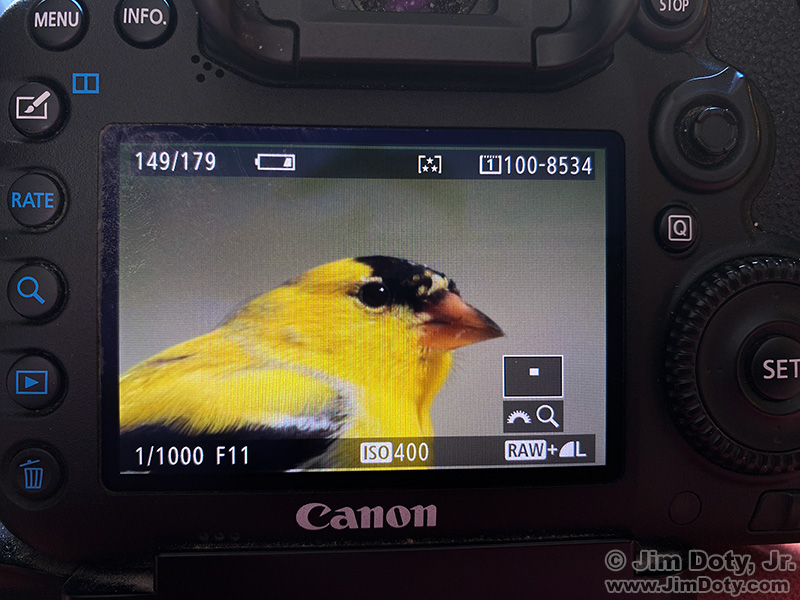
Sometimes I click the shutter and it might be one of my better photos. After the action dies down I go back to that photo and zoom in on the back of the camera for a better look. In this case of this Goldfinch this morning, I wanted to be sure the catch light in the eye was sharp. It was so, I pushed the RATE button (left side of the camera) three times. At the top of the photo screen you can see three little stars in brackets.
When I download the photos with Adobe Bridge (which is excellent software and it is a free download), I can click on the three star icon and Bridge will show me just the three star rated images.
Choosing Favorites from a Photo Shoot

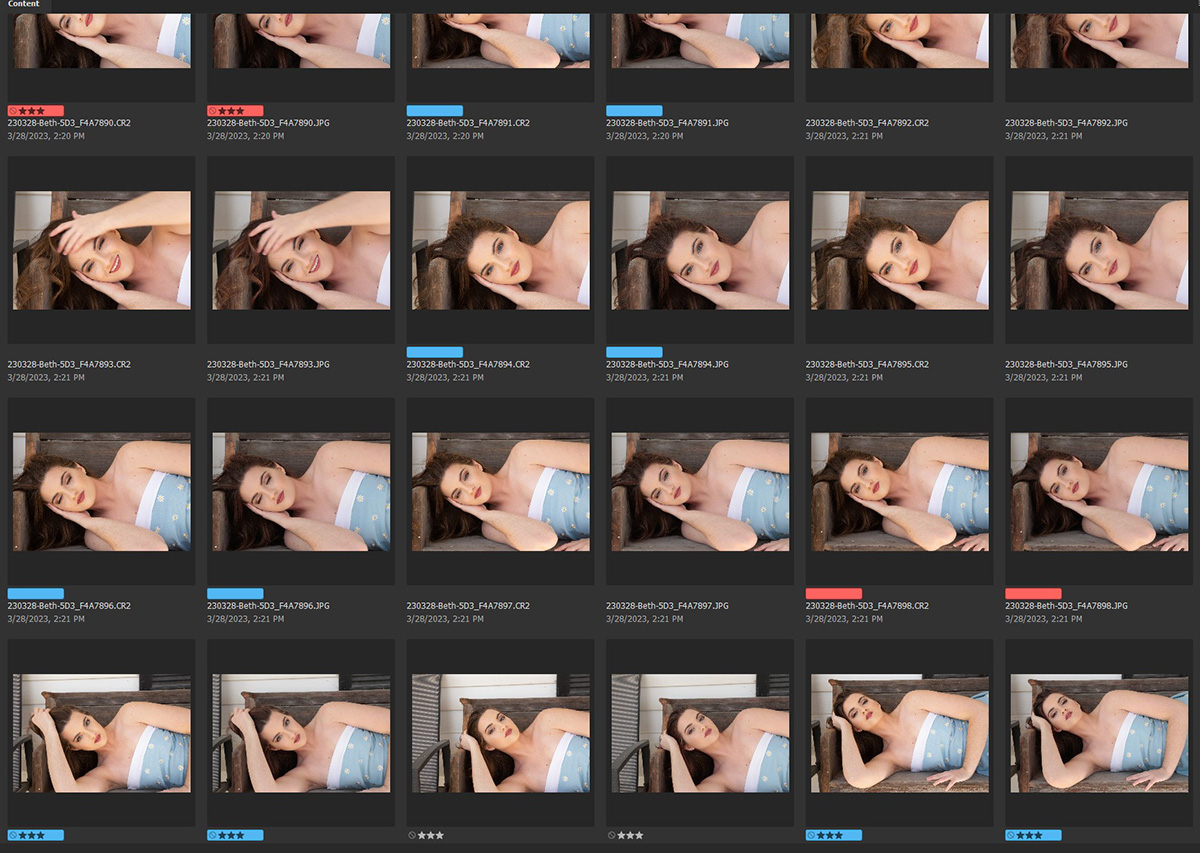
As is my custom at the end of photo shoot, I handed my camera to Beth and asked her to pick our her favorites. She turned the thumb dial on the back of the camera to go through the photos and she read the four digit file numbers of her favorites, I wrote them down. If she said something like “I especially like this one!” I put down a star by that file number.
How Far Was I From This Burning Building?
How far was I from this burning building that I photographed last night for the local newspaper? My initial guesstimate was between 300 and 400 yards. The actual distance was 356 yards, more or less. How I did I figure that out?
Keeping Track of Photo Locations with a Handheld GPS Unit
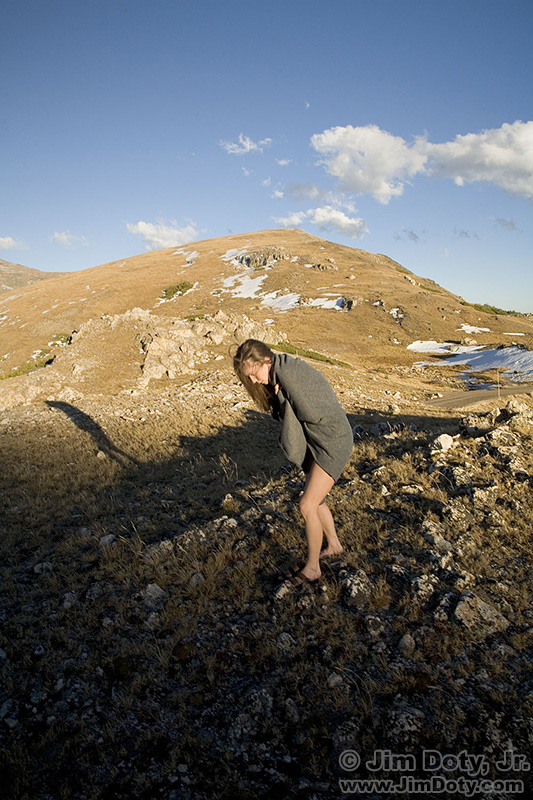
A chance look today at an old photo just sent me back in time, both photographically and technologically. It was bone chillingly cold and Sarah and I were doing figure studies high in the Colorado Rockies. (One of our images is at the end of this article.) Back in 2007 most cameras did not have built in GPS units and my primitive mobile phone did not have GPS capabilities either. But I still wanted to keep track of some important photo locations, and this spot was one of them.
Does Topaz Gigapixel AI Work?

I have acquired some small, old family prints that I would generally describe as “fuzzy”. They are not clean and sharp. Making small fuzzy photos bigger does not make them better, it makes them worse. As I was explaining to an inexperienced photographer, making a high resolution copy of a blurry photo does not make it better. It just means you can turn a small blurry photo into a much bigger and therefore much blurrier photo.
The Metadata in Your Digital Photos
Topaz Software: Concert Photo
Last night I was photographing the local elementary and high school band concert for the local paper. The light level on the stage was low enough that I needed to use an ISO of 1600. That meant a fair amount of digital noise.
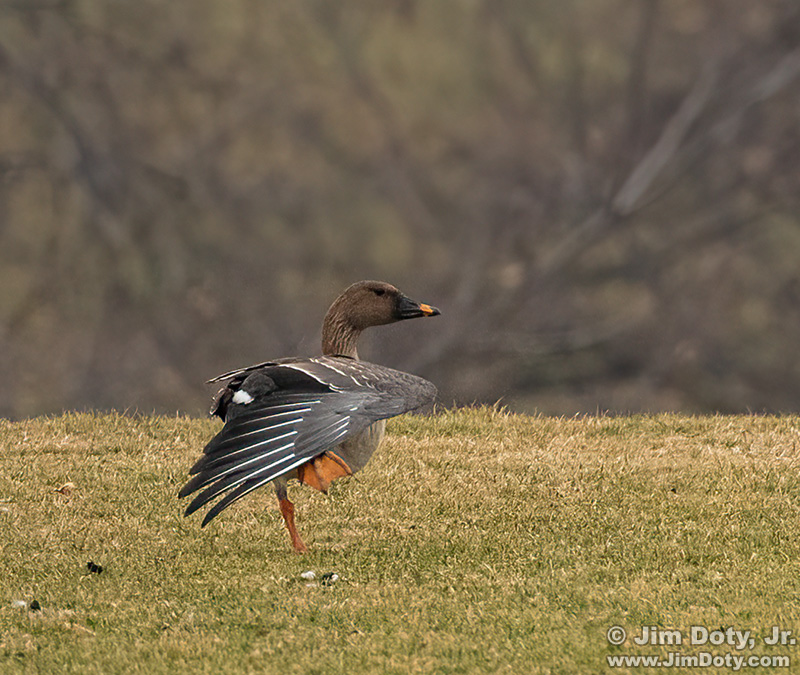
Tundra Bean-Goose, Part 2
I went looking for the Tundra Bean-Goose again this afternoon (see the prior article), along with one of my young grandsons. The light was much better than yesterday which meant a lower ISO setting on the camera and a lot less digital noise than at ISO 6400 late yesterday afternoon. That would mean better photos.
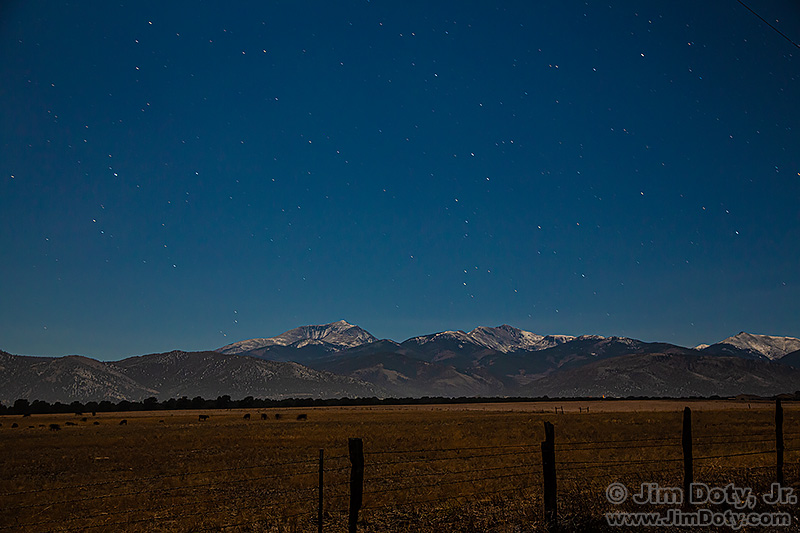
How do you figure out the names of the mountains in your photos?
How do you figure out the names of mountains you don’t know? It is relatively simple. I will show you how.
Ten years ago last night (October 26-27, 2012), my brother John and I were about a mile north of Poncha Springs Colorado. It was around midnight and we had a bright moon high in the sky. John was taking in the view and I was pointing my tripod mounted camera several different directions and taking pictures by moonlight.
Topaz Sharpen AI
The more I work with Topaz Sharpen AI, the more impressed I become. Topaz uses artificial intelligence to sharpen images that are not quite sharp.
My iPhone Photography Apps

I keep my photo apps together on one screen on my iPhone. Many of these apps are also available for Android phones. I thought I would share a screen capture of my photo apps and tell you briefly what these apps do. Some of these apps do things with the photos that are on your camera phone. Some of them help you control your camera phone. Some of them deal with an external camera (like my DSLR) or with external hardware. A few apps help you be at the right place at the right time. One or more of these apps might be just the ticket for what you like to do.
Fixing a Color Cast With ACR
Despite all the things you do to get the right white balance (see my last article on setting a custom white balance), there are some situations where a color cast is pretty much unavoidable. When that happens, ACR comes to your rescue.
Your Camera Does NOT Capture Reality! – And What To Do About It.
You have heard it said a lot, and maybe said it yourself: “This picture doesn’t do the scene justice.” That is often true and for several reasons. One is that digital cameras do not capture reality. No matter how fancy or expensive, digital cameras simply do not capture what your eyes see. That is also true with film cameras. All color photographic films have different color characteristics. Some have better reds, others have better greens or blues. Some are more saturated and others less saturated. But none of them are totally color realistic. So why don’t digital cameras give you realistic images and what can you do about it?
Originally posted December 16, 2015. Revised and re-posted January 18, 2022.
Bobcat: Fast and Simple Tonality Adjustments with Adobe Camera Raw
With the right software, you can make quick improvements in your images. There are some lighting situations where it is almost impossible, and certainly not practical, to get the correct white balance setting in the camera. This bobcat photo is an example. The best, fastest, and simplest solution is to get the right while balance setting after the fact using software like Adobe Camera Raw (ACR). A few minutes work with ACR can make a big difference in the look of your photos.
Topaz Sharpen AI Reduces Digital Noise
It started with an invitation to photograph a first class model in a gutted hotel. How could I say no? Most of the images from our photo shoot came out great, but the photo above, at least in the original version, was a challenge for my digital camera. The contrast range was too much for the camera to handle (this was back in 2008) so the well lit part of Tiana’s body looked just fine but the darker side was really noisy. Digital cameras were a lot noisier 14 years ago.